
Notes from your Watch.Thine for Apple Watch
Phone on the desk, conversation in the hallway. Tap once, and the notes land in Thine like any other.
Needs the latest Thine on your iPhone, an Apple Watch paired with it, and watchOS 11 or later.
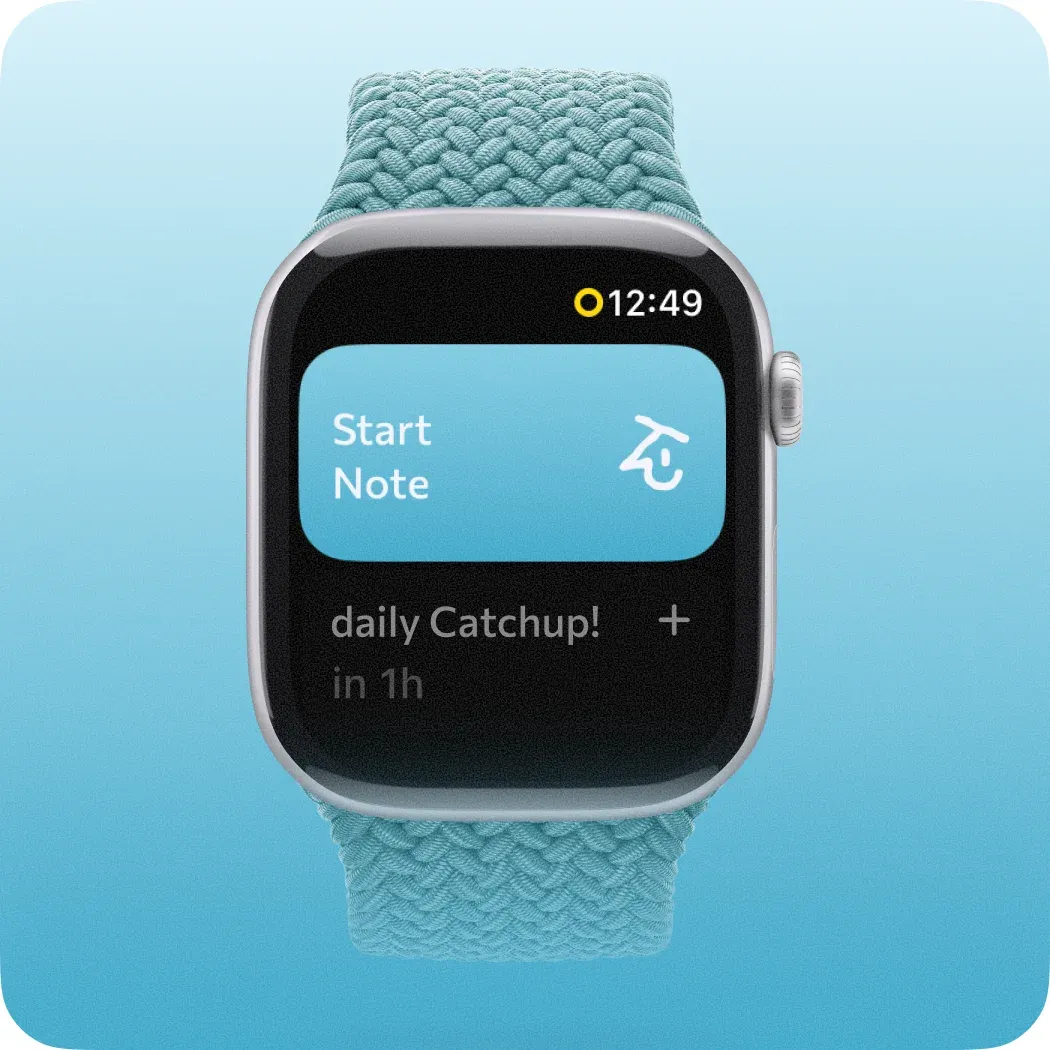
Just pinch to record
A quick pinch to take notes when you’re in a pinch.
Double tap your finger and thumb, and Thine starts listening. No need to touch the screen.
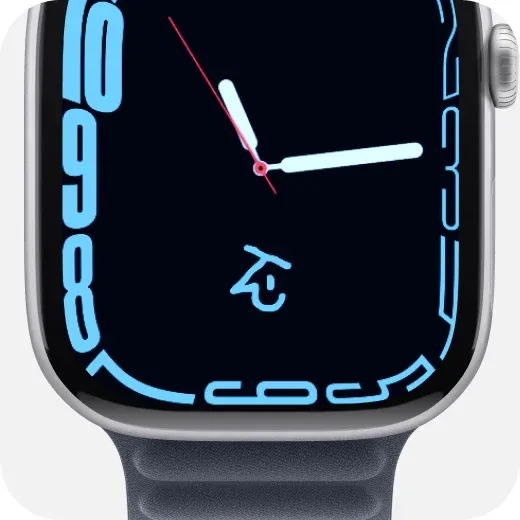
Start recording in one tap
Add Thine as a complication and it’s one tap away whenever you raise your wrist.
Open the Watch app on your iPhone, choose the watch face you want to edit, pick a spot under Complications, and select Thine.
Set up in four steps
- 1
Get the pieces
The latest Thine on your iPhone, an Apple Watch paired with it, and watchOS 11 or later.
- 2
Install on your Watch
Thine usually installs itself after you update the iPhone app. If it hasn’t, open the Watch app, scroll to Available Apps, and tap Install next to Thine.
- 3
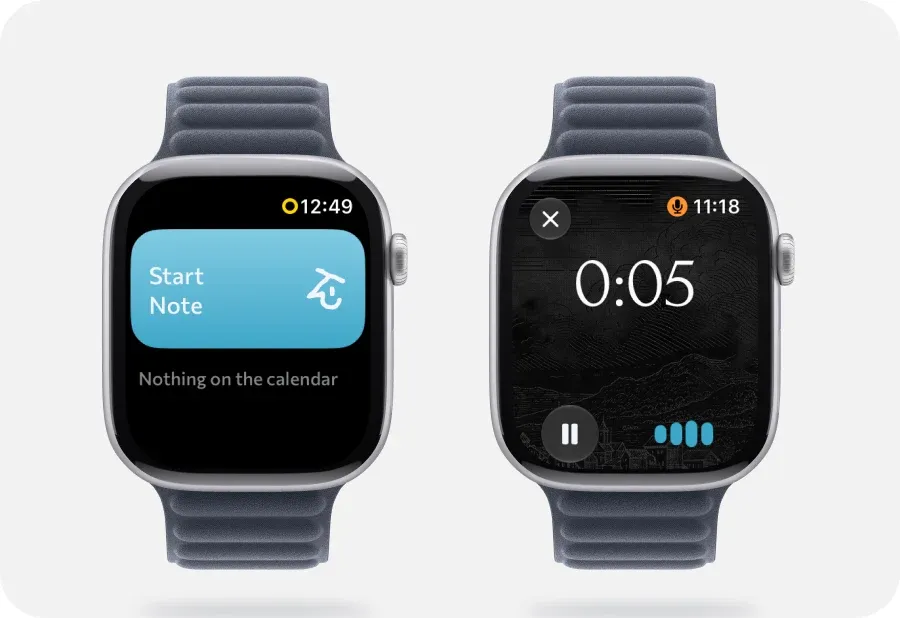
Record
Tap Start Note. A chime and a tap on the wrist mean recording has begun — so people nearby are aware. Lower your wrist or switch apps; it keeps going. No signal needed: the Watch records on its own.
- 4
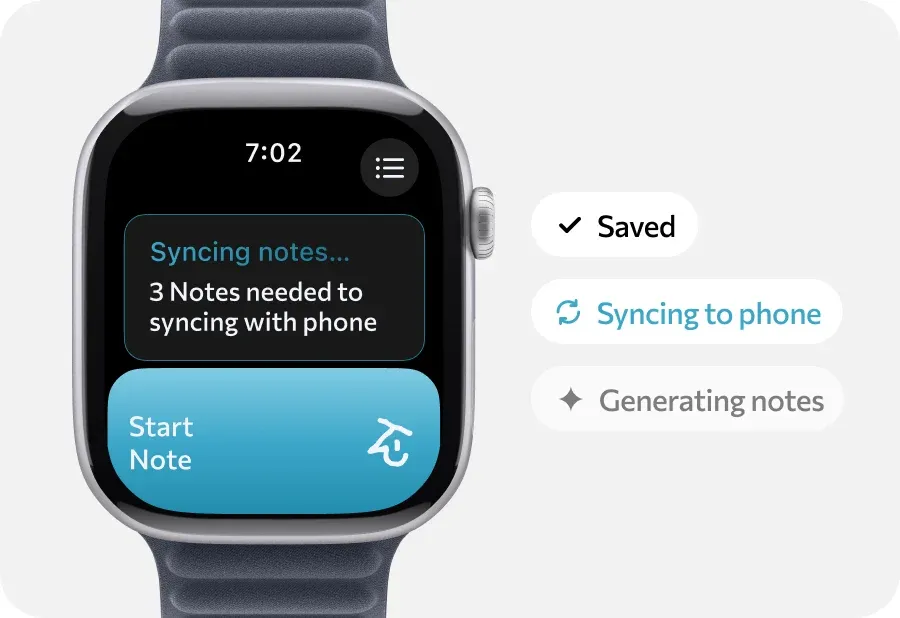
Let it sync
Tap End. The note lands in Thine on your iPhone.
If something’s stuck
“Waiting to sync” on the Watch
Keep the Watch and iPhone near each other with Bluetooth on — a sync needs both awake. On the Watch, open Watch notes and swipe a recording to Retry or Delete.
The chime played even though the Watch is muted
That’s on purpose, so people nearby know a recording started. Turning the volume down makes it quieter.
The Watch says the microphone is off
On the Watch, Settings → Privacy & Security → Microphone → Thine.
Notes aren’t appearing on the phone
Open Thine on the iPhone once — the transfer finishes in the background, but the first sync after install needs the app to have run.
Notes from your Watch.
Phone on the desk, conversation in the hallway. Tap once, and the notes land in Thine like any other.